The fault you're chasing won't happen while you're watching it. A Studio 5000 trend catches an intermittent fault when a trigger does the watching: pre-samples sized to the event, a sample period the signal can justify, and a laptop that stays online with the chart open, because Rockwell's help says the trend needs one.
That last part surprises people, and several pages online get it wrong. I'll come back to it. This post expands the trend section of episode 21, where someone on r/PLC asked for a secret formula on trends. There's no formula, but there is a setup, and I'll give it to you with numbers. I also have two corrections to what I said on air.
Why a trend you watch rarely catches the fault
A recurring fault shows up when nobody is looking, so sitting in front of a running trend mostly measures your patience. The trend that works is armed in advance, waits on a condition you picked, and records what happened before and after that condition came true. The trigger does the watching.
About two years into my career I was at a high speed plant where product moved faster than the eye could follow. I got pulled into a pass down meeting because a servo drive had catastrophically overtorqued and crashed a load of process material. Everyone wanted to know why.
Our history at the time was an MES collector that recorded every tag in the PLC once every five minutes. The event lasted maybe ten seconds. At best we had a snapshot a couple of minutes before and another a couple of minutes after, and nothing in between. I knew as soon as I heard the story that none of it would help.
My boss knew too, so he sent me to the floor with a laptop to trend it. That specific issue never happened again. We reported an investigation to upper management, and everyone technical understood the data couldn't have told us anything.
That's the normal outcome of trending after the fact. If I were sent back today, I wouldn't spend the week watching a chart. I'd build the capture below, leave it armed, and go do something useful.
Does a Studio 5000 trend need the PC connected?
Yes. Sampling happens in the controller, but Rockwell's help says the workstation must be online to the controller, with the chart open, to run a trend. Sampled points go to workstation memory, and a communications timeout halts the trend. Treat the laptop as part of the capture system, and leave it connected until you've saved the data.
There are two half-right answers floating around. One says trends run on the workstation, not the controller. The other says the controller is doing the sampling, so you can walk away. Rockwell's help for Logix Designer 37.00 settles most of it:
- The Trend Control Bar page says the Run button starts sampling in the controller.
- The Run a Trend page says "the workstation must be online to the controller, with the chart open." The 38.02 help has the same sentence.
- The Workstation CPU Requirements page says sampled points land in workstation memory first, and are displayed after that.
- The View Trend Errors page says a communications timeout halts the trend internally.
So the controller samples and the PC keeps the data. Rockwell's text covers starting a trend and losing the connection. It doesn't spell out what happens if you close the chart mid-run, and I haven't bench tested that. I'd treat closing the chart as the end of the capture.
If you're leaving a laptop on a machine for a few days, that changes how you prepare it:
- Turn off sleep and hibernate, and plug it into power.
- Use a wired connection to the controller's network, not Wi-Fi.
- Close everything else. Rockwell's own example warns that opening other applications makes the graph display erratically once the PC is at its limit.
- Check free disk space, and point the trend log directory at a drive with room.
- Get the site's OK, label the laptop, and tell the next shift not to close it.
How to set the start trigger, pre-samples and post-samples
Clear No Trigger on the Start Trigger tab, watch a tag that goes abnormal early, and use Trigger Level Equal for analog crossings. Pre-samples and post-samples each go up to 1,000, so the window is sample period times samples. At 10 ms, 1,000 samples is 10 seconds on each side.
The pre-samples are the reason this works. They let the trend show you what the machine was doing before anyone knew there was a problem. Rockwell sets the valid range at 0 to 1000 with a default of 100. Most people never change the default, which at 10 ms gives you one second of history. For a ten second event that's almost nothing.
Here's how I'd set it up for that servo overtorque. These values are an illustration I built from Rockwell's documented settings. They aren't the settings from that job, and the tag names are made up.
- Run one good cycle first, with no trigger. Fix the Y axis to a range you expect and pick a sensible time span. You need to see normal peak torque before you can define abnormal.
- Pick your pens. Torque command, torque feedback, position error, velocity, the axis fault bit and the machine state. That's six of your eight.
- Set the sample period to 10 ms. Do this first, because the setting is disabled while the trend is running.
- Set the start trigger. Tag
Torque_Fbk, operation Trigger Level Equal, target value somewhere above your normal peak. - Set pre-samples to 1,000. That keeps 10 seconds of history before the crossing.
- Set the stop trigger. Post-samples live on the Stop Trigger tab, not the Start Trigger tab. Use
Axis_Faultwith a target value of 1, and post-samples of 1,000 for 10 more seconds. - Set Number of Captures above 1. I'd use 5, so a second occurrence gets its own capture without anyone re-arming it.
- Press Run, confirm the state changed, and leave it alone.
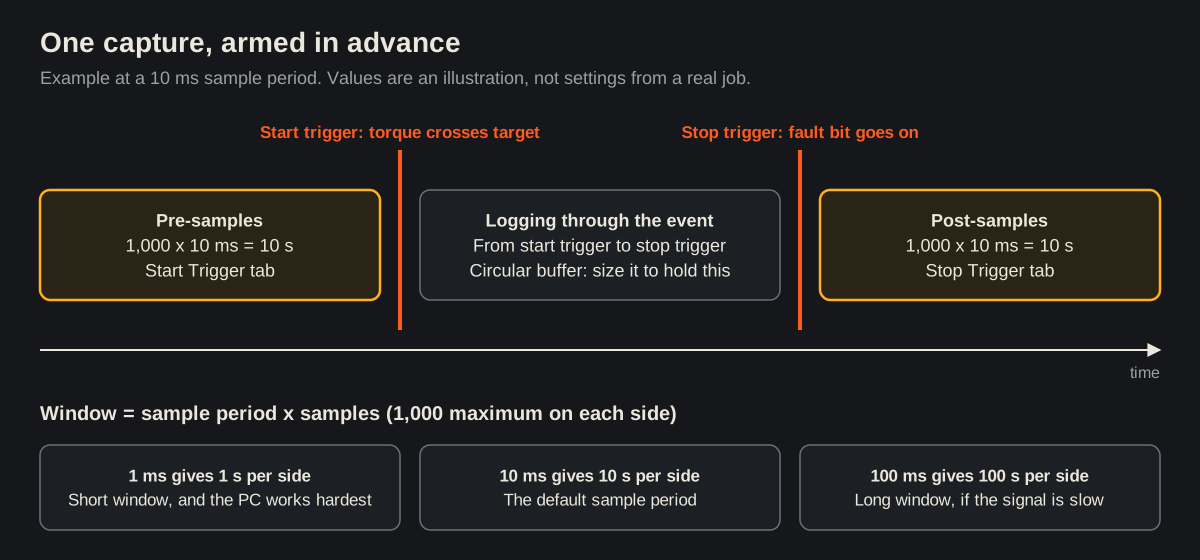
Why Trigger Level Equal? Rockwell's help explains that Exact Equal can miss a value that falls between two samples, and floating point precision makes an exact match unreliable anyway. Trigger Level Equal compares the previous sample with the current one and fires when the value crosses the target in either direction. For a REAL, that's the one you want.
One behaviour to plan for: logging runs from the start trigger until the stop trigger. If torque crosses your target and no fault follows, the trend keeps logging into its circular buffer until one does, so a threshold that's too low can roll your pre-trigger history out of the capture.
Pick the trigger tag carefully. As I said on the episode, if the bit you trigger on changes 100 milliseconds after the thing you care about, you've built the wrong trap. Pre-samples buy that margin back, which is another reason not to leave them at 100.
How fast should the sample period be?
As slow as still shows the event. The setting runs from 1 millisecond to 30 minutes with a 10 ms default, but a fast setting doesn't create real data. A tag only changes as fast as the device, the I/O update and the logic behind it. Slower sampling also buys a longer window from the same 1,000 samples.
I need to correct myself here. On the episode I said mechanical relays take "two hundred and maybe three hundred milliseconds" to open and close. For general purpose control relays, that's too high. These are the published numbers:
| Relay | Pickup | Dropout |
|---|---|---|
| Allen-Bradley 700-HA | 10 ms max | 10 ms max |
| Allen-Bradley 700-HC | 25 ms max | 20 ms max |
| Allen-Bradley 700-HK | 15 ms max | 5 ms max |
| Finder series 55 | about 10 ms | about 5 ms |
Sources: Rockwell catalogs from 2012 and 2020 for the 700-HA and 700-HC, Rockwell's cutsheet for the 700-HK at nominal voltage and 20 C, and Finder's series 55 catalog.
The point I was making still holds, with a smaller number. Trend a relay's coil against its feedback contact at 1 ms and you're looking at the relay's timing, plus contact bounce and your input filter.
The other number I gave was a proximity sensor taking "forty milliseconds." That's true at the slow end, and misleading as a general figure. Datasheets give switching frequency, not milliseconds. Festo's SIED-M18B-ZS-K-L (part 538280, 2024 datasheet) lists 490 Hz on DC and 25 Hz on AC. That's about 2 ms per cycle on DC and 40 ms on AC, from the same sensor. Read the datasheet for the part in your machine.
You can see all of this for yourself on a bench. A training kit with real terminals and one relay will teach you more about trend resolution than any article, including this one.
Then look at the controller side. Rockwell's About Trending page has an example table, and the hardware is old: a Logix 5550 over ControlNet with a 1000 MHz PC. It still makes the point. At 1 ms it managed one tag at a 20 percent time slice or four at 90 percent, and Rockwell notes the missing data error showed up even with a single tag. At 2 ms it topped out at eight tags at 40 percent. Don't read those as limits for your controller. Read them as proof that the setting and the delivered data are different things.
My rule of thumb is to get two or three samples inside the shortest thing you need to see. Rockwell's Workstation CPU page gives the same direction from the other side, recommending the longest period that's practical. A 100 ms period on a slow process gives you a 100 second pre-trigger window and an easier life for the PC.
What size capture, and how many?
Size of Each Capture is a circular buffer, so the oldest data gets overwritten when it fills. Keep it larger than pre-samples, the event and post-samples combined. Set Number of Captures above 1 so the trigger re-arms, and save the log before you press Run again, because starting a trend deletes existing data.
Rockwell gives you three ways to size a capture on the Sampling tab:
- Samples or Time Period. Both keep a circular log working file. The default is 10 minutes or one sample period, whichever holds more samples. The maximum is 2 hours of samples or 1,000 samples, whichever is greater.
- No Limit. This logs until the stop trigger, until the drive is 80 percent full, or until 100 MB of free space remains, whichever comes first.
No Limit on a busy laptop is how you fill a disk over a weekend. For an intermittent fault I'd use a bounded capture. The Sampling tab also shows Estimated Trend Capture Size and Estimated Trend Log Size, so check those before you walk away.
Number of Captures matters more than it looks. When it's above 1 and a start trigger is set, Rockwell's help says the trigger is monitored again once the previous capture ends. That means the second occurrence gets captured too, even if nobody has been near the laptop.
The one that really hurts is on the Run a Trend page: starting a trend permanently deletes all existing trend data. If you captured something, hit Log on the control bar and save it before anyone touches Run. I'd make that the first thing you tell the person covering for you.
How do you trend more than eight tags?
Each trend holds eight tags, so pack related BOOLs into a DINT and trend that one tag: 32 bits on a single pen, or 16 in an INT. Then decode the value afterward. It's cheaper than adding trend views, because Rockwell says each view creates a task in the controller and consumes resources.
A controller supports 32 trending objects, for a maximum of 256 tags, and only one on a 1769-L23. But Rockwell's About Trending page says each view is really a task in the controller, and advises keeping the number of views as low as you can. So a packed word beats a second view.
In structured text the packing is plain bit assignment, with your own tag names:
Trend_Word.0 := Conveyor_Run;
Trend_Word.1 := Infeed_Blocked;
Trend_Word.2 := Discharge_Blocked;
Trend_Word.3 := Drive_Ready;
This is reasoning from the data types. I haven't tested these catches on hardware for this post, so check them on yours:
- The sign bit. Bit 31 of a DINT is the sign, so a word with bit 31 set reads negative. Use the lower bits first.
- The chart. You'll see a number stepping around, not separate lines. Export to CSV and split out the bits there.
- Scan resolution. The word updates when that logic runs. A pulse shorter than a scan never makes it in.
- Consistency. Build the word in one place in the logic, so a sample doesn't catch it half updated.
If you end up wanting the same packing block across a lot of machines, that's a separate decision, and I wrote about when packing logic deserves an AOI.
When a trend is the wrong tool
A trend suits events from tens of milliseconds to minutes when you can keep a PC online. For a pulse shorter than the sample period, latch it in logic. For anything spanning days across a plant, use a historian. Neither job is what the trend was built for, and forcing it wastes the week you have.
A trend takes periodic samples, so a pulse shorter than the sample period can fall straight between two of them. It's also a debugging tool on one laptop, not a data system.
| Situation | Better tool | Why |
|---|---|---|
| Event of tens of ms to a few minutes, PC can stay online | Triggered trend | Before and after context with little or no code change |
| One scan pulse, or an event faster than you can sample | Latch or FIFO in logic | The controller sees every scan, so nothing falls between samples |
| You can't leave a PC connected | Snapshot to a buffer in logic | The data stays in the controller until someone reads it |
| Slow drift over days or weeks | Historian | Long retention, many tags, no laptop |
| Comparing across lines or sites | Historian, SCADA or MES | Shared time base and a place people can go look |
The five minute MES collector I started with wasn't a bad system. It was the wrong tool for a ten second event, and that gap catches SCADA too. I wrote up why SCADA polling misses fast events on the Joltek blog, and it's a big part of why I tell people to learn the backend when they ask which HMI and SCADA platform to pick.
What the errors in the Trend Error Log are telling you
Check the Trend Error Log before you trust a capture. A buffer overrun stops the trend, a communications timeout halts it, missing samples let it continue but are reported only once, and a clock set backward discards samples. A clean looking graph can still have holes in it.
Rockwell's View Trend Errors page lists these. Four matter on a long capture:
| Message | Cause | What happens | What to do |
|---|---|---|---|
| Communications timed out | Controller off, or no connection to the PC | Trend halted internally | Clear the log or press Stop, then check the connection |
| Buffer overrun | Capture size too small | Trending stops | Make Size of Each Capture larger |
| Missing data sample(s) | PC too slow, or too many tags too fast | Trending continues, reported once | Fewer tags or a longer period |
| Data sample(s) discarded, duplicate timestamps | Wall Clock Time set back by PTP, SSV or a user | Trending continues, duplicates discarded | Stop those changes during the capture |
The missing data one deserves extra attention. Rockwell's own tip on that 1 ms example is that the error appears even for one tag while the graph still looks fine. And since it's reported once per trend, a single line in the log may stand for a lot of lost samples.
What to do on your next recurring fault
Next time something faults every few days and nobody can say why, skip the chair next to the machine:
- Write down what you need to see, and the shortest event inside it.
- Trend one good cycle with fixed axes, so you know what normal looks like.
- Choose the longest sample period that still gives you two or three samples in that shortest event.
- Size the window with sample period times 1,000. If it's too short, slow down or find an earlier trigger.
- Set the start trigger, pre-samples, stop trigger, post-samples and Number of Captures.
- Prepare the laptop to stay online, and tell the next shift.
- Read the Trend Error Log, save the log, and only then run it again.
If the same fault keeps coming back after all that, the conversation moves past the trend and on to what recurring downtime costs a plant and which data you should have been keeping all along. But for most intermittent faults, a Studio 5000 trend with a good trigger is the cheapest evidence you'll ever collect.